Manage Video Study Notes Like a Pro: The 2025 Obsidian + BibiGPT Workflow
The Challenge of Video-First Learning
Video has become the dominant format for learning in 2025. Platforms such as YouTube and Bilibili deliver endless value—but they also create problems: fragmented information, weak recall, and messy review workflows. Traditional note-taking interrupts focus and rarely captures the full picture. Bookmarking alone does not connect ideas or build durable knowledge.
Why Obsidian + BibiGPT Works
BibiGPT converts videos and audio into structured text with AI summaries, translations, and interactive dialogues. It supports advanced prompts for critical thinking and deep analysis—see our guide to custom prompts for more.
Obsidian then anchors those insights inside your knowledge graph. Bidirectional links, tags, and flexible metadata let you relate new notes to existing material and surface them when you need them most.
Prefer Notion? We have a dedicated tutorial: Build a high-efficiency video workflow with Notion + BibiGPT. Need multi-platform sync? Explore BibiGPT’s export guide for 10+ destinations.
The Platform-Neutral Flow: Four Steps
Start with the tool-agnostic workflow — four steps that turn any video into a searchable note in your knowledge base:
- Paste a video link — YouTube, Bilibili, a podcast, or a local file all work;
- Generate a summary + mind map in one click — AI transcribes the content and distills timestamped, structured takeaways;
- Export Markdown (with timestamps) — Obsidian notes are plain-text Markdown files stored on your device, so Markdown is its native language;
- Import into your Obsidian vault — drop the file into any folder, or let the one-click save land it for you.
Rule of thumb: To judge whether a video note-taking setup will last, look at step 3 — is the output open-format Markdown? If yes, your notes are portable forever. If no, the day you switch tools is the day you start over.
Here is how those four steps map onto BibiGPT + Obsidian.
Setup: Build the Workflow in Minutes
- Log into BibiGPT and open Account Settings → Bindings.
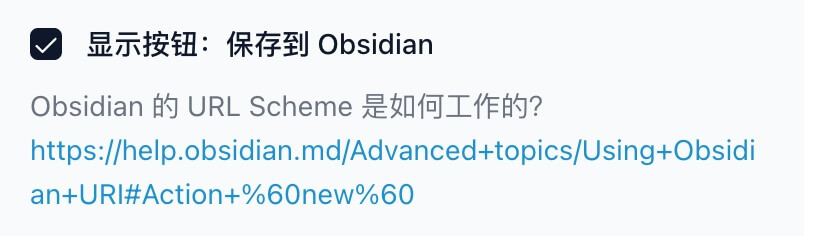
- Enable Save to Obsidian and click Save.
- Install the latest Obsidian client. BibiGPT communicates via URI schemes, so a proper install is essential.
Run a summary in BibiGPT, then tap Save to Obsidian.
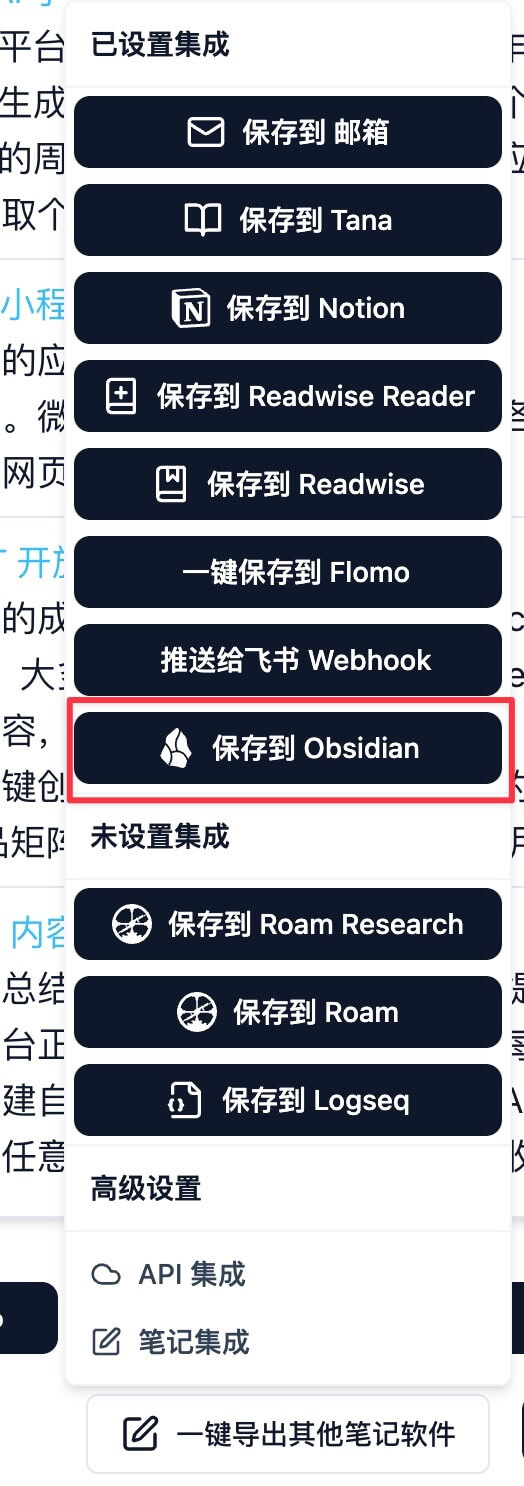
The first time you do this, macOS or Windows will request permission to open Obsidian—click Allow. BibiGPT creates a BibiGPT folder inside your vault and stores notes there automatically.

Need more detail? Review the official Obsidian sync instructions.
Daily Use: Capture, Sync, and Connect
Once configured, the workflow is effortless:
- Watch a video—BibiGPT handles transcription, translation, and structured summaries.
- Hit Save to Obsidian to send the note to your vault.
- Use backlinks, tags, and templates to connect new insights with existing knowledge. The progressive summarization method pairs well here — each time you revisit a note, bold only the most valuable layer, and the highlights surface themselves through use.
- Leverage BibiGPT’s translation features to manage multilingual content without friction.
Want notes to land in a specific vault subfolder instead of the default? Set a local save path inside BibiGPT and every note files itself into your structure:
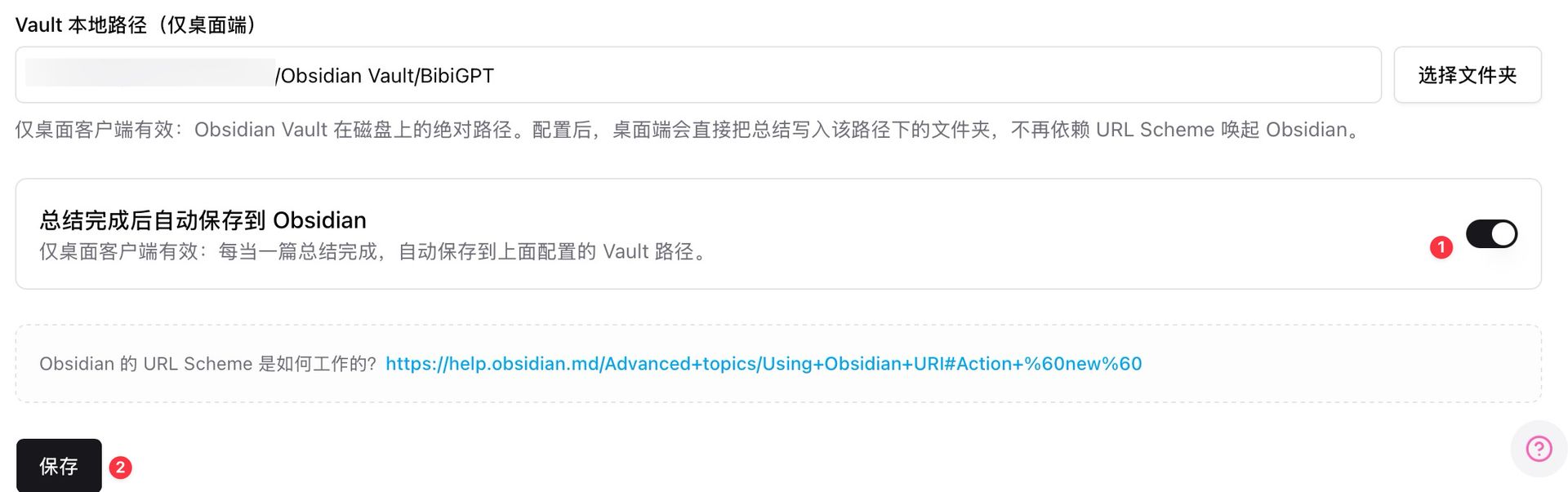
Screenshot: Obsidian vault path settings — notes save straight into the folder you choose
Rule of thumb: Take the extra step of moving each note into its topic folder — three-months-from-now you will thank today-you. Auto-save solves “storing”; folders and tags solve “finding”.
Advanced Tips for 2025
- Obsidian URI automation: Trigger note creation or app actions via custom URLs or Shortcuts. See Obsidian URI docs.
- Standardized templates: Pre-fill tags, metadata, and sections so every note remains consistent and easy to search.
- Knowledge graphs: Use Obsidian’s graph view to visualize relationships, surface hidden links, and plan deeper study sessions.
Optimization Playbook
- Schedule regular reviews with daily or weekly note dashboards. A classic replication of the Ebbinghaus forgetting curve (published in PLOS ONE) found people forget roughly 70% of new information within a day — regular review isn’t a ritual, it’s damage control.
- Organize folders by topic or difficulty to keep large vaults manageable.
- Iterate on the workflow—insert new tags, adjust property fields, or pair with spaced repetition.
Rule of thumb: The minimum viable review is “open the graph view and click one unfamiliar node” — far more executable than “reorganize everything when I have time”, and far easier to sustain.
Looking Ahead
The Obsidian + BibiGPT combo turns scattered clips into a living knowledge system. AI-driven transcription, translation, and dialogue make learning faster; Obsidian keeps the insights discoverable long-term. As AI evolves, expect even richer context awareness, better visualization, and smarter automation.
Start Today
Ready to try it yourself? Visit bibigpt.co and start your free trial. Sync it with Obsidian, and transform video learning into a structured, intelligent workflow—perfect for lifelong learners and professionals alike.