
How to Make the TikTok Transformation (Reverse) Effect — No App Needed (2026)
How to Make the TikTok Transformation (Reverse) Effect — No App Needed (2026)
Scroll your feed and a clip stops you cold: messy hair snaps into a perfect style in a blink, a cluttered room tidies itself in an instant, spilled water flows back up into the cup. “Wait — what just happened?” You watch it again. Those “transformation” clips have a surprisingly simple secret: most of them are made with reverse playback.
100-word direct answer: The TikTok “transformation” effect is just a reversed video. ① Shoot it “normally” in finished → unfinished order. ② Reverse the footage so it plays unfinished → finished. That’s the whole trick. No app required — open ReverseFlow, the free in-browser video reverser, load your clip, reverse it, and export. No watermark, either.
This guide covers the transformation reverse effect that’s become a staple on TikTok and Shorts — why it’s so popular in Japan, how to make one without any app, and the shooting tips that keep it from going wrong.
What the “transformation” reverse effect actually is
The transformation effect makes viewers feel like time is running backwards — the order of shooting and playback is flipped.
Take the “cluttered room tidies itself” clip. In reality, you film yourself messing up an already-tidy room, then reverse it. To the viewer it reads as “magically cleaned in a flash,” but the secret is simply a rewind. The same logic powers a whole genre:
- The transformation challenge: the classic move — start bare-faced or in loungewear, cover your face with your hands, drop them, and you’re in full makeup or an outfit. It’s actually shot by undoing the finished look, then reversed
- The “things put themselves back” rewind: a broken object repairs itself, scattered parts assemble, a finished plate fills back up with food
- The “suck-back” shots: spilled water or sand flows back into its container, smoke gets pulled back in
They all work because time flows in a direction reality never allows. Reverse playback is the easiest way to create that uncanny feeling with zero special equipment.
Why the transformation reverse trend is so big in Japan
BibiGPT 里同一件事是怎么做的?下面这张实拍可以参考:
截图:BibiGPT · ai video to article 功能演示
Reverse trends exist worldwide, but Japan has an especially deep affinity for them, rooted in a couple of cultural factors.
One is familiarity with “transformation” itself. In a culture raised on anime and tokusatsu, the “instant change of form” beat carries built-in expectation and literacy — transformation effects land intuitively. The other is the reverse-singing and mishearing meme「逆再生で歌ってみた」: a long-standing habit of playing songs and phrases backwards to hear new meanings. Because reversing the picture and the audio sit side by side, users are already comfortable with “do something fun via reverse playback.”
Tip: Viral transformation clips share one trait — they make you want to watch twice. The first watch is the surprise; the second is to figure out “how’d they do that?” That replay value translates directly into views and engagement.
How to make the transformation reverse effect with no app
回到 BibiGPT 这边,下面这张产品实拍展示了对应的入口:

截图:BibiGPT · ai video to article 功能演示
Here’s the actual workflow. No dedicated app, no paid software — shoot on your phone, reverse it in your browser.
Step 1: Shoot in finished → unfinished order
Because you’re planning to reverse it, start filming from the goal state.
- For a room tidying up: start with a clean room and film yourself messing it up
- For a makeup transformation: cover your face with your hands in your finished look, drop your hands, then work back toward bare-faced
- For an object assembling itself: film yourself taking the finished item apart
Keep the camera locked down. A tripod or phone stand prevents drift, so when you reverse it the background stays steady and the effect lands cleanly.
Step 2: Reverse it in your browser
Once you’ve shot it, open ReverseFlow in your browser and load the clip.
- Load your footage via “Select video”
- Set the video to reverse (turn on “reverse the audio too” if the sound is part of the bit)
- Check the preview to confirm it now reads “unfinished → finished”
- Export and save
Everything runs inside your browser — no app to install, no upload — and the export has no watermark, so you can post it straight to TikTok or Shorts.
Step 3: Finish and post
Bring the reversed clip into the TikTok app, add music and text, and post. Choosing music so the beat hits right at the “reveal” moment kicks the impact up a level.
Shooting tips so it doesn’t go wrong
如下图所示,BibiGPT 在这一步的处理方式是这样的:
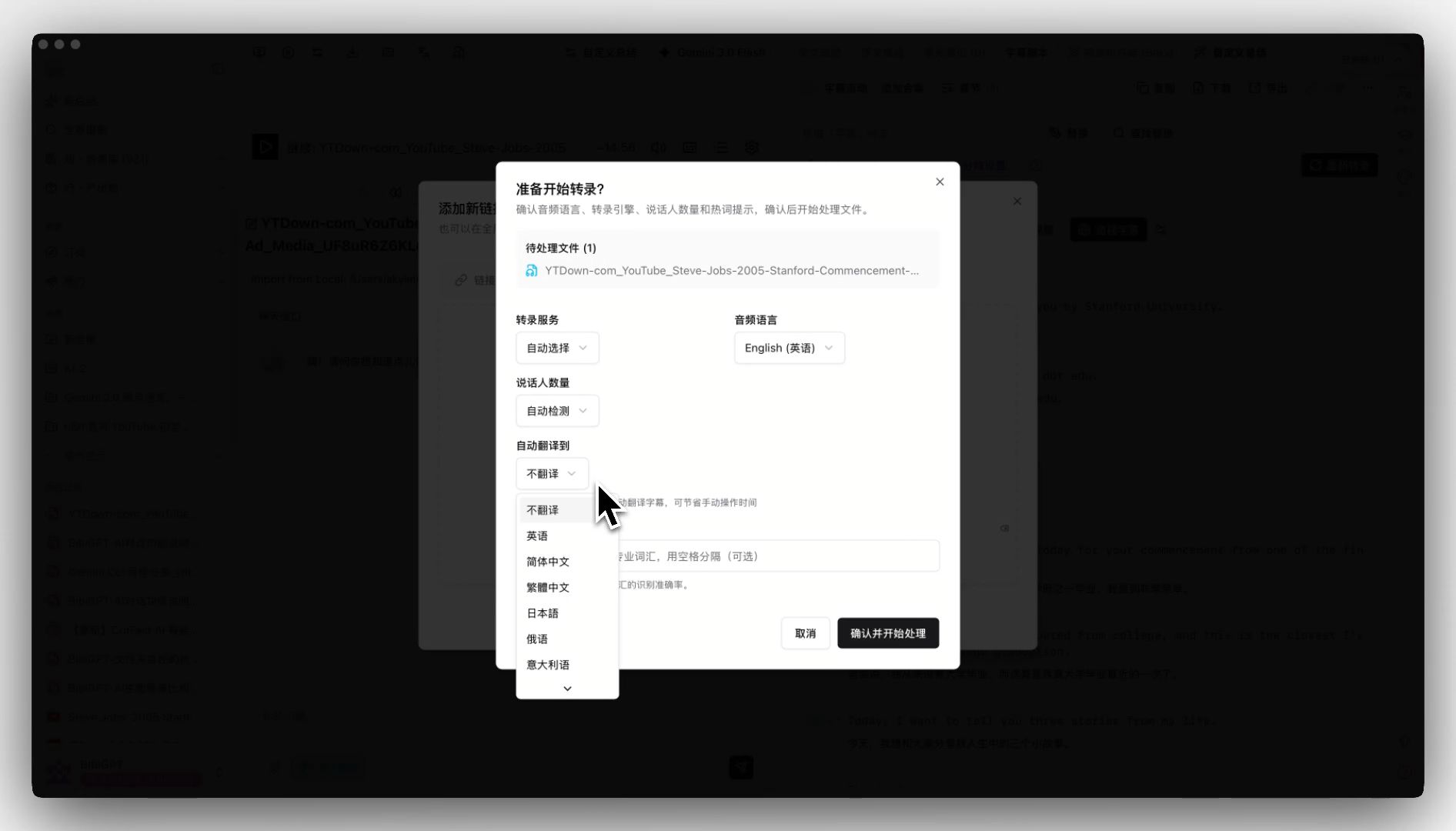
截图:BibiGPT · auto translate on upload 功能演示
- Keep it short: a few seconds of surprise is plenty. Long clips are heavier to reverse and weaker on pacing
- Use a hand swipe as the “switch”: covering your face or swiping a hand across the lens makes a clean edit point, so the transformation looks seamless
- Lock the camera: handheld footage makes the background wobble unnaturally when reversed
- Keep the lighting steady: if brightness shifts mid-shot, it looks off once reversed
Tip: Most “the transformation didn’t land” failures come down to shooting in the wrong order or camera shake. Two habits — start from the finished state and lock the camera — make a huge difference.
Going further: research trends and your next move
下面这张是 BibiGPT 里对应的实拍画面,可以一眼对照:

截图:BibiGPT · batch export summary post zip 功能演示
Once you’ve got the technique down, the next question is “what to transform.” The fastest way to know which transformation challenges are climbing is to browse trending TikToks. Use the TikTok video finder to dig up popular clips, and pair it with the AI TikTok tools toolkit to smooth the path from idea to post.
Frequently Asked Questions (FAQ)
Can the transformation effect really be made with reverse playback alone?
Most “transformation” and “rewind” clips are built around reverse playback at their core. Film the undoing of a finished state, reverse it, and you get the “completes in an instant” effect — no complex editing software needed.
Can I reverse a video without installing an app?
Yes. Open the tool in your browser, load the clip, reverse it, and export. No install, no sign-up.
Can I reverse the audio along with it?
Yes. Pick “reverse the audio too” and the picture and sound flip together in sync. This is also how you make the Japan-favorite reverse-singing bits.
Will the exported clip have a logo watermark?
No. You can post it straight to TikTok or Shorts.
Wrap-up: make one short clip first
The transformation reverse effect looks flashy but is genuinely simple to make: shoot from the finished state → reverse it in your browser → post. Just three steps. Start with a classic like “a messy room tidies itself,” using a short clip around 10 seconds.
When an idea strikes, open ReverseFlow, the free in-browser video reverser and reverse the clip you just shot.
Related tools & posts
- ReverseFlow — free in-browser video reverser (no app) — the reverse playback at the heart of the transformation effect, in your browser
- AI TikTok tools — a toolkit for making short-form videos
- TikTok video finder — find trending TikTok videos
- How to Reverse a Video Without an App — Free, In-Browser, No Download (2026) — the companion post in this batch
BibiGPT Team