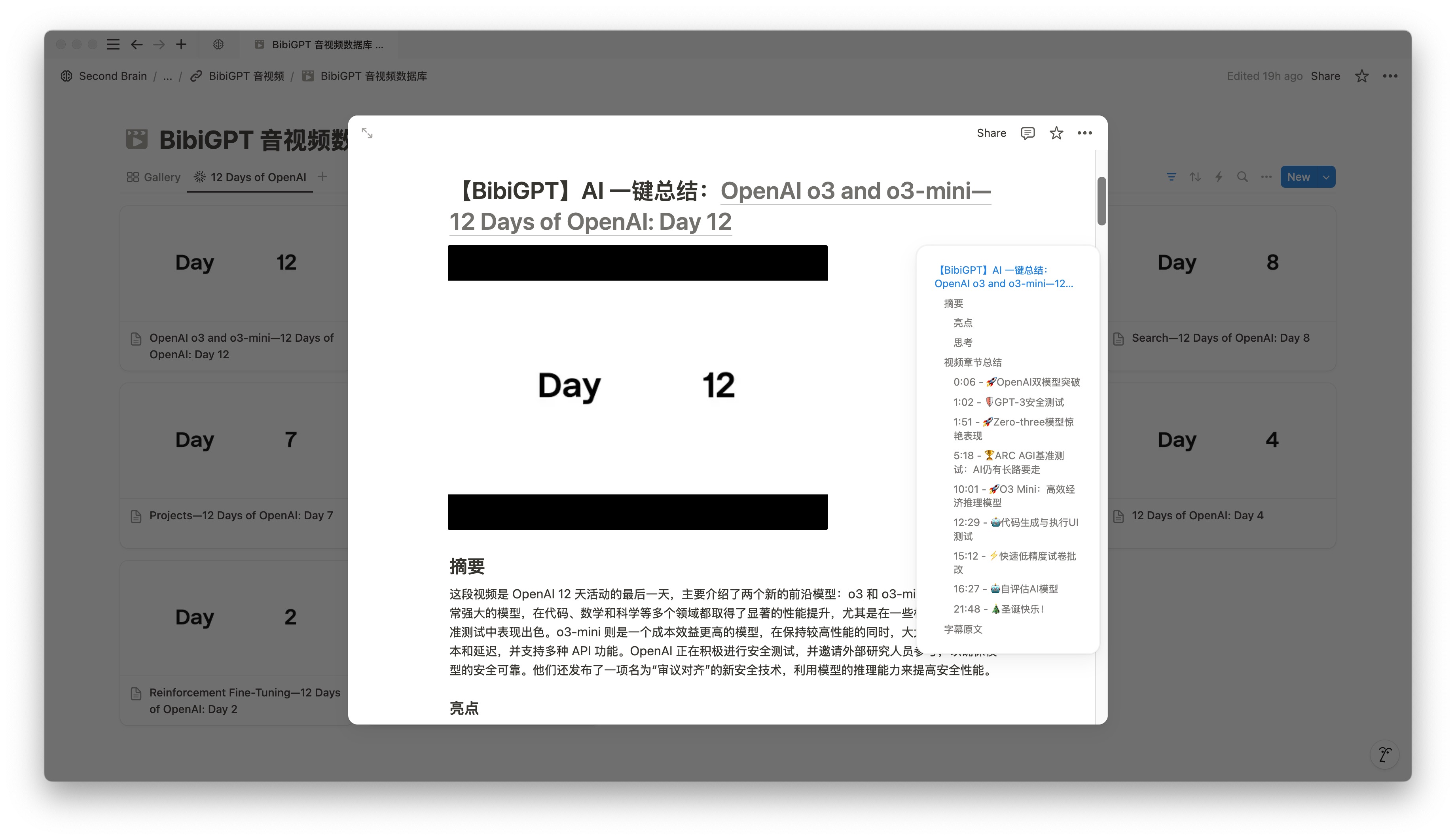
Build a High-Efficiency Video Learning Workflow with Notion + BibiGPT

Build an AI-Driven Video Learning System
In today’s information-heavy world, video learning dominates—but traditional note-taking can’t keep up. BibiGPT + Notion delivers an intelligent workflow that turns raw video content into organized knowledge you can reuse.
BibiGPT extracts structure from videos automatically, while Notion provides a flexible, collaborative home for your knowledge base.
The Platform-Neutral Workflow: Four Steps
Whichever note app you end up with, the “video → knowledge base” flow is the same four steps:
- Paste a video link — YouTube, Bilibili, a podcast, or a local file all work;
- Generate a summary + mind map in one click — AI transcribes the content and distills timestamped, structured takeaways;
- Export Markdown or sync directly — Markdown is a universal plain-text format every note app accepts;
- File it into your knowledge base — use Notion databases for tags, relations, and multi-view organization.
Rule of thumb: Fix the workflow first, then pick the tool — the workflow is platform-neutral; the tool is just the executor. If any of the four steps can be swapped out, your knowledge base isn’t locked into a single vendor.
Here is how those four steps play out with BibiGPT + Notion.
Complete Workflow Guide
1. Quick Setup
Bind your BibiGPT and Notion accounts. Two options:
One-Click Binding
- Visit the BibiGPT account page and press Bind Notion.
- Watch the setup video if you need a walkthrough.
Custom Configuration
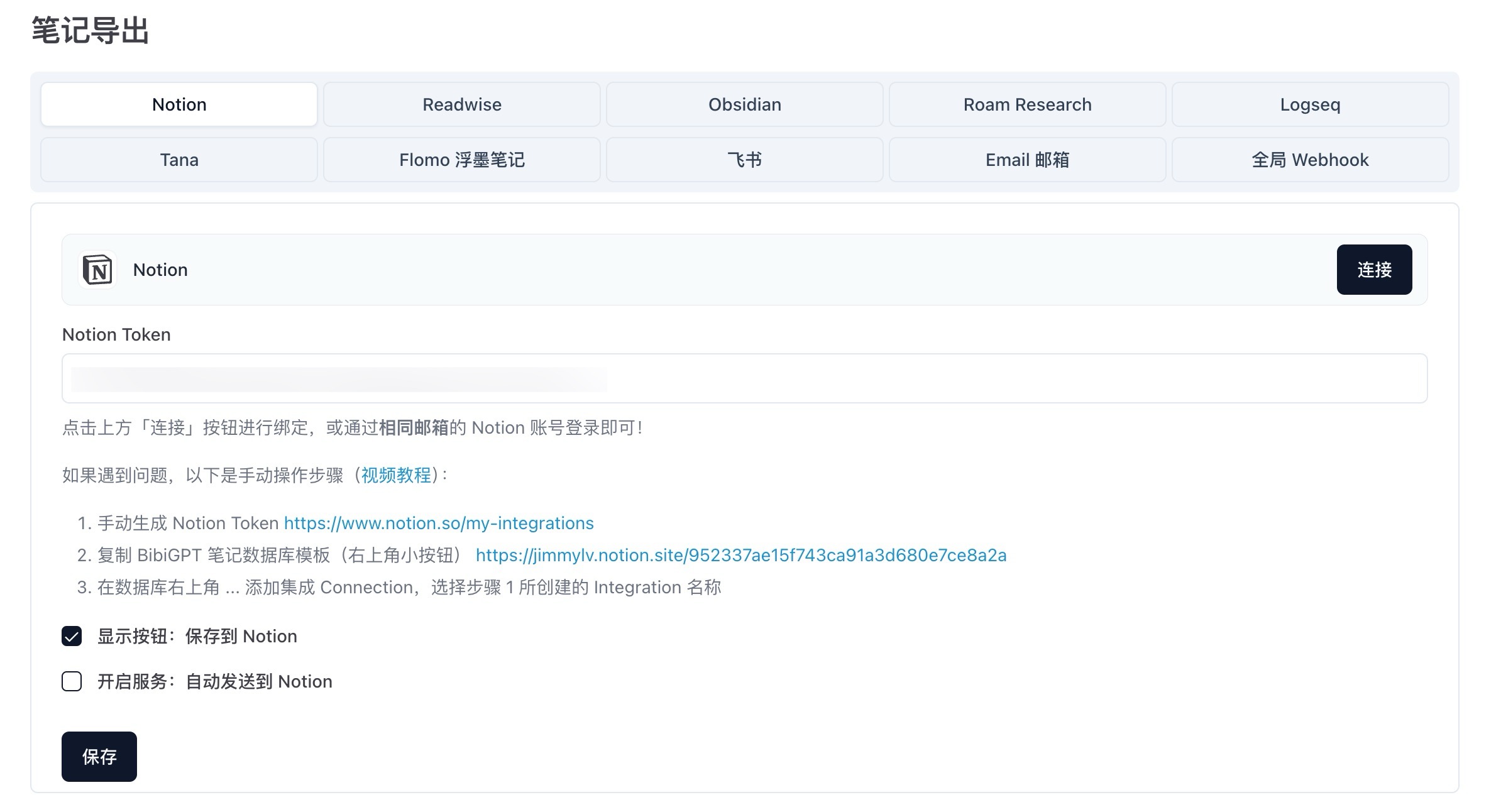
Use this mode if your email addresses differ:
- Create a Notion integration
- Go to My connections and create an internal integration (avoid naming it “Notion”).
- Authenticate
- Copy the integration token and paste it into BibiGPT’s configuration panel.
- Initialize the database
- Import the official template, authorize the integration, and confirm permissions.
Once connected, BibiGPT will push video metadata, covers, tags, and structured summaries into Notion automatically. Curious how the integration works under the hood? See the Notion API official documentation — BibiGPT writes through this official interface and only touches the databases you authorize.
2. Smart Sync Strategies
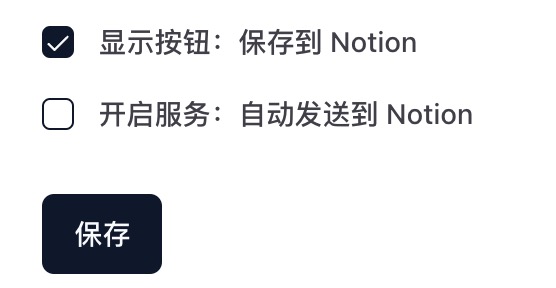
BibiGPT supports two sync modes:
Precision Control
- Preview and edit summaries before saving
- Manually select high-value notes
- Decide exactly when to sync
Full Automation
- Let BibiGPT sync everything in the background
- Maintain a complete learning archive with zero friction
Choose the mode that matches your learning style. Prefer curation? Use precision control. Want maximum speed? Turn on auto-sync.
Rule of thumb: A sync strategy answers exactly one question — “does this video deserve a place in my knowledge base?” If you want to vet each one, use precision control; if you want a complete archive with zero misses, turn on auto-sync. You can switch modes anytime.
Prefer to sync only the passages you highlighted in a summary? Use the highlight-notes export path — here is where it lives:
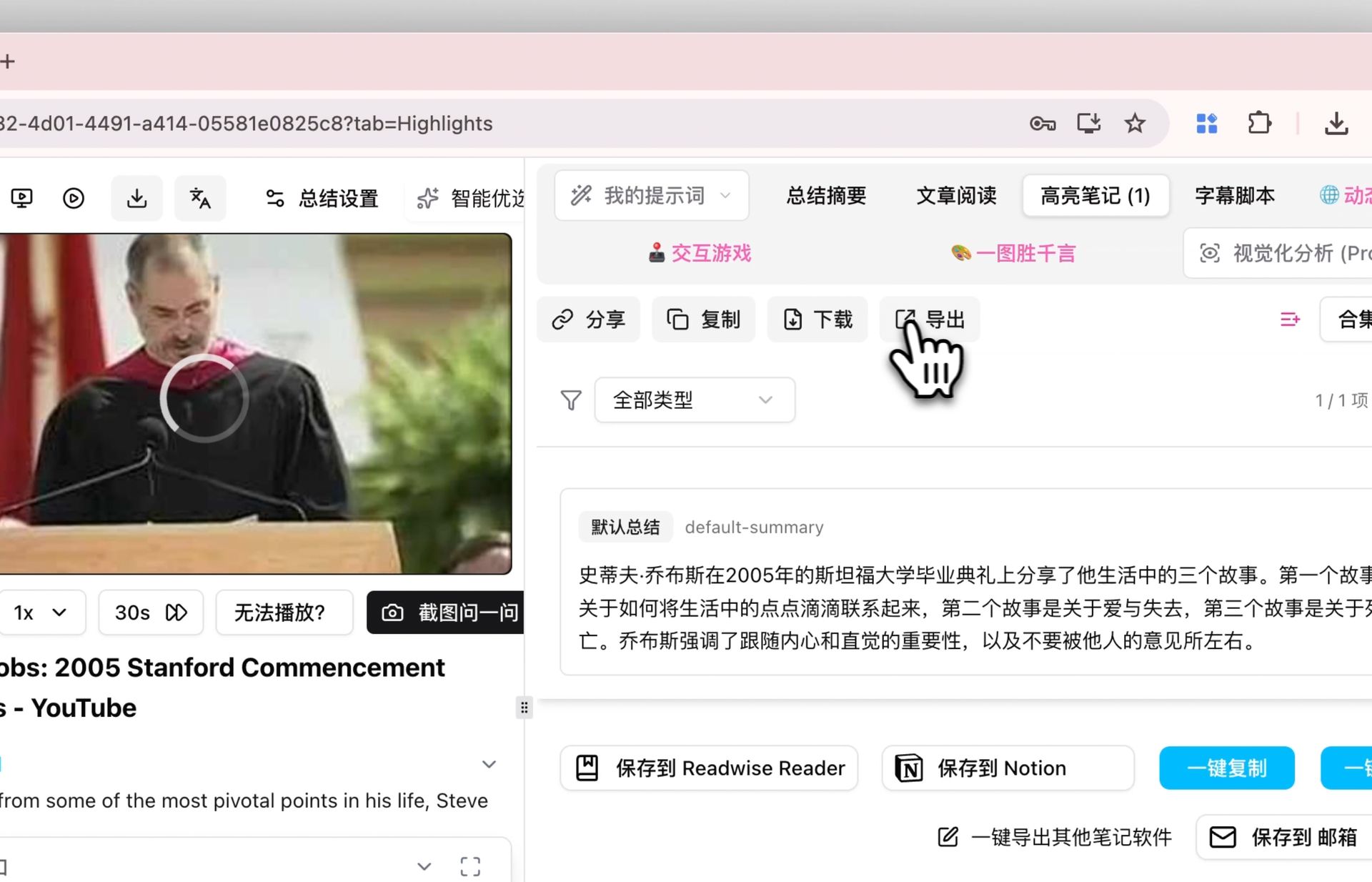
Screenshot: BibiGPT’s highlight-notes export — send highlights to Notion or download them as Markdown
Need more destinations? BibiGPT also syncs to Feishu, Obsidian, Yuque, and beyond. See the multi-platform sync guide, and if you love Obsidian, dig into our Obsidian + BibiGPT workflow.
3. Build a Smart Knowledge Ecosystem
BibiGPT turns video content into structured notes—solving the biggest bottleneck in video learning. Within Notion, you can:
- Link notes across topics for deeper associations
- Apply tags and properties for layered organization
- Enrich AI-generated notes with personal insights, references, or team discussions
Not sure how to structure the knowledge base? Borrow the widely used PARA method — Projects, Areas, Resources, Archives. Video notes land naturally in Resources and flow into Projects as you use them.
Rule of thumb: A knowledge base is measured by retrieval, not by volume. Give every video note at least one topic tag and one link to an existing page — future-you will actually find it.
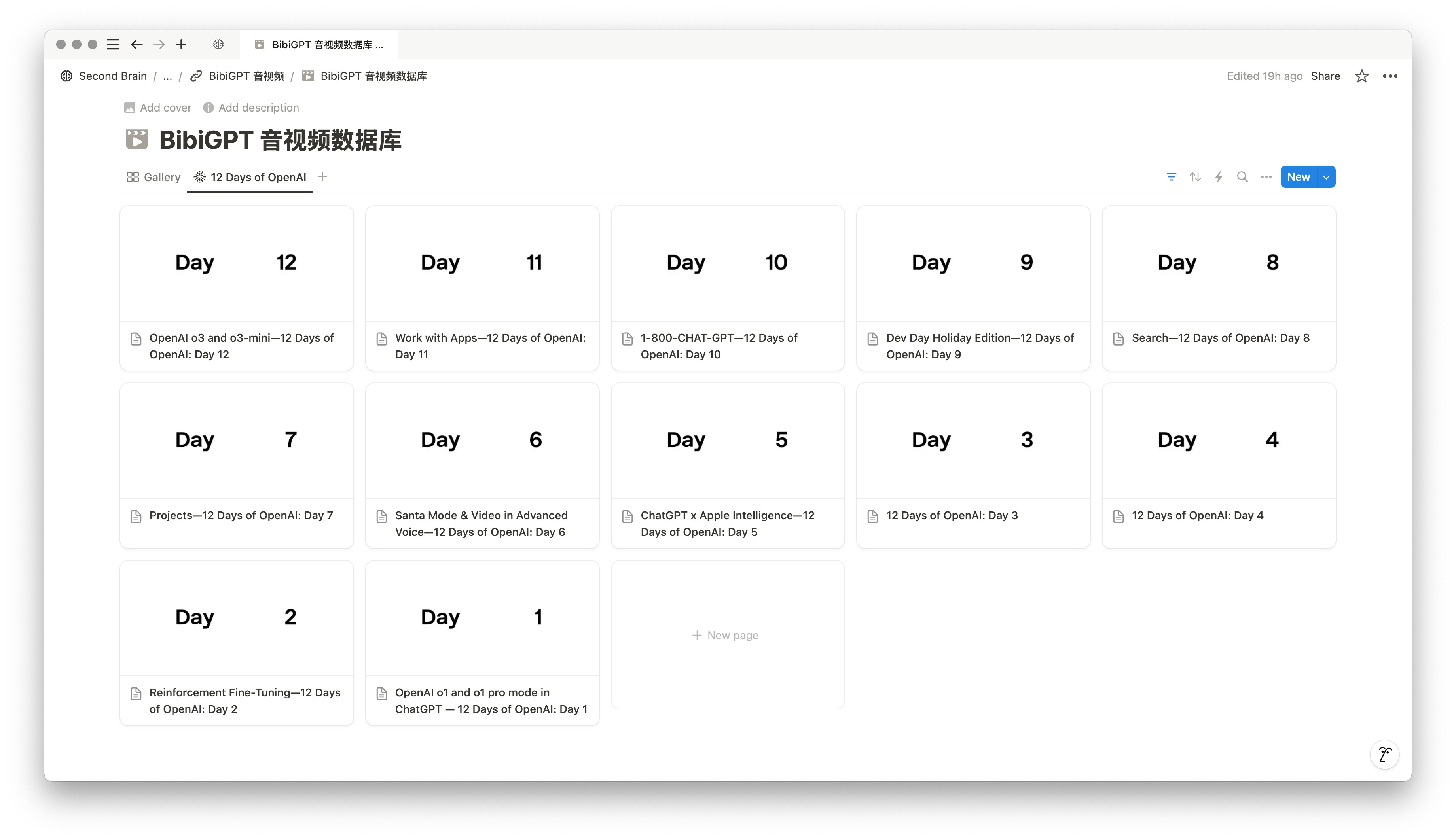
The result is a media-rich knowledge base that keeps your learning loop intact: capture → summarize → connect → apply.
Popular tools
More in this series
- Is Evernote v11 AI Enough in 2026? BibiGPT: A More Native Audio-Video Knowledge Management Solution
- Cách xây cơ sở kiến thức AI: BibiGPT x Notion / Obsidian Quy trình PKM 5 bước cho video & podcast (2026)
- Xây bộ não thứ hai bằng AI từ video và podcast: Phương pháp PKM 4 bước (2026)
- Turn One Video into 10 Content Formats: The Complete AI Video Content Repurposing Workflow for 2026
- AI Video Content Repurposing: Complete Pipeline from Long Video to Narrated Short Video (2026)
Xem tất cả 9 bài trong Second brain và PKM →