Best Free YouTube Transcript Extractor 2026: 7 Tools Compared

Quick answer: The best free YouTube transcript extractor in 2026 depends on whether you only need captions or also usable notes. Paste a YouTube URL into BibiGPT to get a full transcript, timestamps, and an AI summary without installing anything. Downsub or YouTube’s own panel still work if you only want raw official captions. For the cluster hub, see YouTube subtitle downloader tools.
You’ve been there: you just finished watching a two-hour replay of an overseas tech conference, and you want to turn the key arguments into notes. You open YouTube’s auto-captions and — every technical term is garbled, the sentence breaks make no sense, and the copied text is basically unusable.
This isn’t a one-off. According to YouTube’s official help documentation, auto-generated captions can produce significant errors due to accents, background noise, and specialized vocabulary. A report from Accessibility.com also found that YouTube auto-captions can have error rates exceeding 30% for non-English content.
So the question is: Is there a better free tool that can quickly and accurately get you the full transcript of a YouTube video?
This article tests 7 mainstream free YouTube transcript and subtitle tools in 2026, comparing accuracy, language support, export formats, and AI-powered features to give you a practical, pick-up-and-use selection guide.
Rule of thumb: When choosing a transcript tool, ask yourself one question — do you just need “raw text,” or do you need “ready-to-use knowledge output”? The answer determines the best tool.
Why You Need a Dedicated Transcript Tool
YouTube’s built-in auto-captions seem good enough on the surface, but they have three hard limitations in practice:
-
Inconsistent accuracy: English content is passable, but for non-Latin languages like Chinese and Japanese, or multilingual presentations, error rates climb sharply. Proprietary terms in tech talks (framework names, algorithm names) are almost never recognized correctly.
-
No direct export: YouTube doesn’t offer a one-click way to copy the full transcript. You have to manually expand the transcript panel and copy segment by segment, or use a third-party tool to extract it.
-
Raw text only, no structure: Auto-captions have no paragraph breaks, no chapter markers, no summaries. A two-hour video turns into a wall of text, making information retrieval extremely inefficient.
Rule of thumb: YouTube auto-captions work for “reading along while watching,” but not for “organizing notes afterward.” If your goal is the latter, a dedicated transcript tool is essential.
This is what a dedicated transcription engine looks like in practice — you pick the engine that matches your audio, instead of being stuck with whatever YouTube auto-generated:
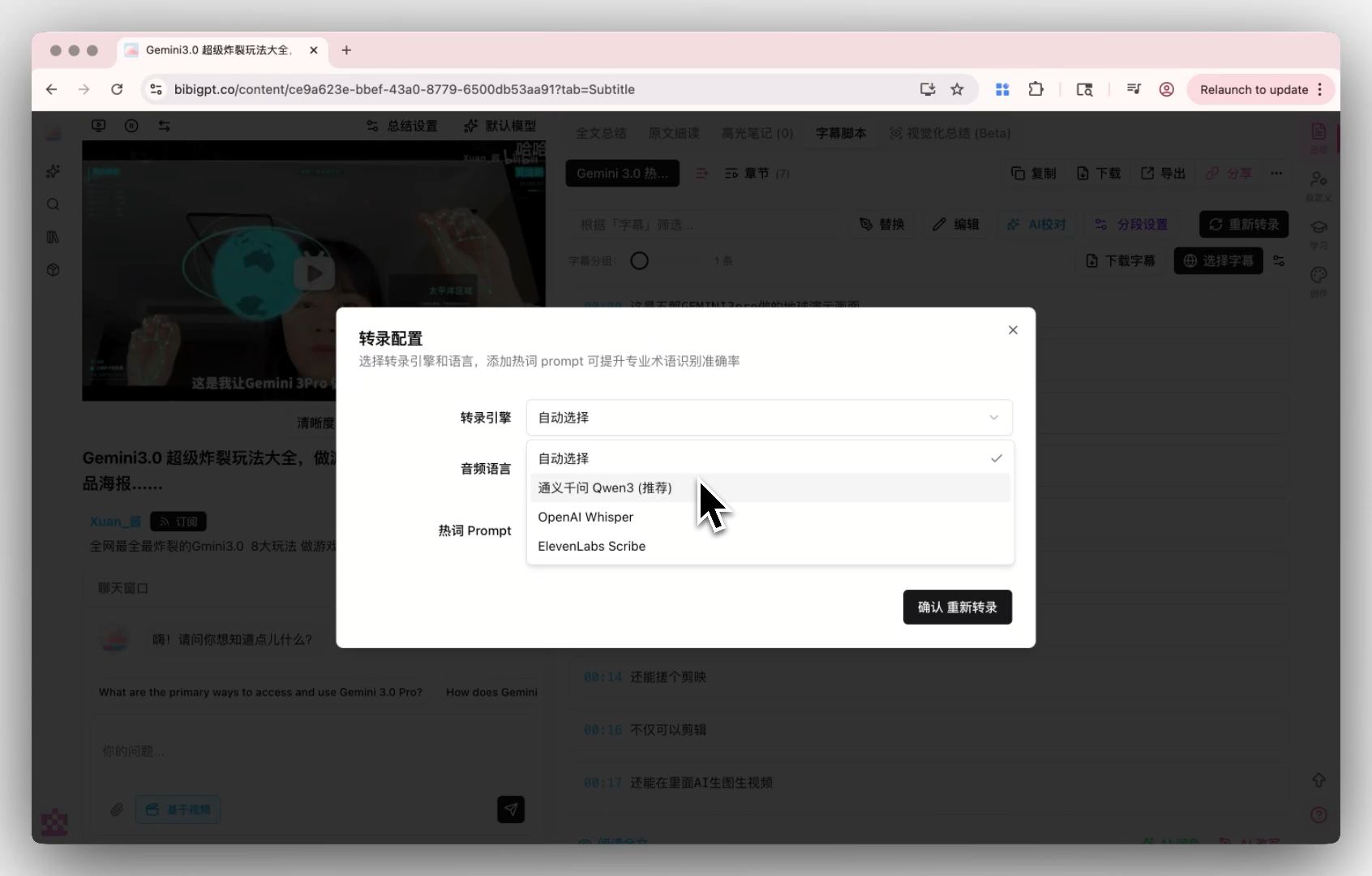
BibiGPT lets you pick a transcription engine per video, instead of relying on YouTube’s auto-captions.
Which Free YouTube Transcript Tools Are Worth Using? 7 Compared
Seven free tools made the cut in our May 2026 testing: BibiGPT, Downsub, and five other extractors and extensions. BibiGPT is the only one that pairs transcripts with AI summaries across 30+ platforms; the rest are lighter, single-purpose downloaders. The table shows what each is best for, what it costs, and how far the free tier stretches:
| Tool | Best for | Price | Free tier |
|---|---|---|---|
| BibiGPT | All-in-one transcript + AI summary + knowledge output | Free credits, Plus/Pro subscription for heavy use | Free credits on signup |
| Downsub | Quick one-off caption downloads | Completely free | Unlimited |
| SaveSubs | Quick one-off caption downloads | Completely free | Unlimited |
| YouTubeTranscript.com | Copy-paste plain text fast | Completely free | Unlimited |
| Tactiq | Live meeting captions (Meet/Zoom) | Free tier; paid upgrade when you exceed it | 10 uses/month |
| Notta | Meeting + mobile audio transcription | Free tier; paid upgrade when you exceed it | 120 min/month |
| Happy Scribe | Professional SRT/VTT subtitle production | Paid after trial | Free trial only |
Key takeaways:
- Downsub, SaveSubs, and YouTubeTranscript.com are “subtitle extractors” — they simply download whatever captions YouTube already has (auto-generated or creator-uploaded) without re-transcribing, so accuracy depends entirely on the original caption quality.
- Tactiq and Notta have independent speech recognition engines that deliver higher accuracy, but their free tiers are limited.
- BibiGPT leads in accuracy, feature completeness, and Chinese language support, and is the only tool offering the full pipeline of AI summary + mind map + follow-up chat.
Rule of thumb: If the video already has creator-uploaded captions, free extractors like Downsub are good enough. If there are only auto-captions or no captions at all, you need a tool with its own transcription engine — like BibiGPT or Notta.
1. BibiGPT — Your All-in-One YouTube Transcript + AI Summary Solution
Best for: anyone who wants transcript, translation, and AI summary in one place — not just raw text.
Among the 7 tools, BibiGPT is the only one that delivers the complete loop from “transcript extraction → intelligent summary → knowledge output,” serving over 1 million users and generating 5 million+ AI summaries to date.
Once the transcript is in, BibiGPT segments it into clean, timestamped paragraphs automatically — this is the difference between a wall of text and something you can actually skim:
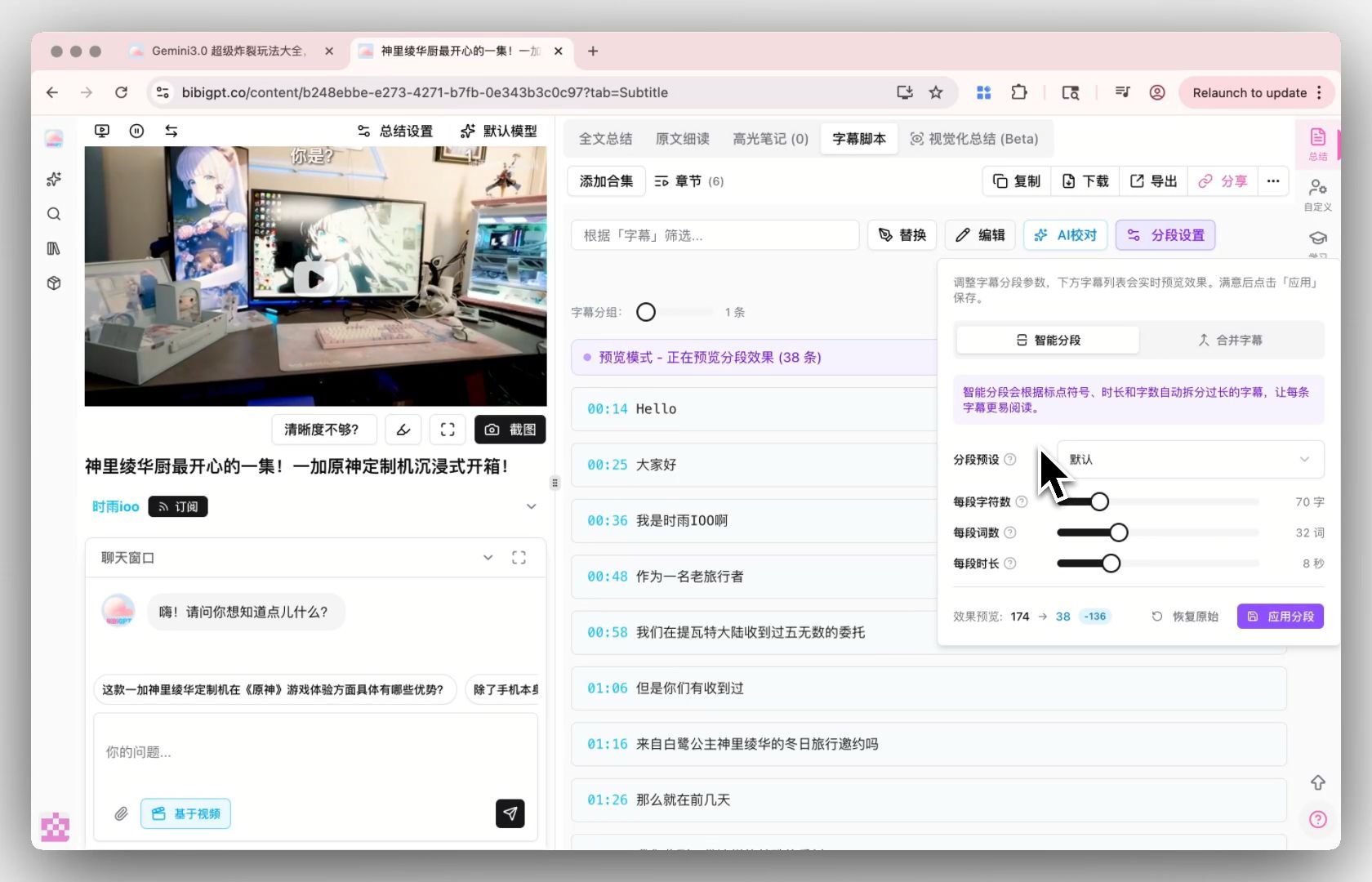
Smart segmentation turns a raw caption stream into readable, timestamped paragraphs.
Get a Full YouTube Transcript in Three Steps
- Paste the link: Open BibiGPT, paste the YouTube video URL into the input box, and hit process.
- Get the transcript: The full transcript is automatically extracted within 30 seconds, displayed in timestamped segments.
- One-click summary: A structured summary, key highlights, and chapter breakdown are generated automatically — plus you can use AI chat to ask follow-up questions about the video.
Why BibiGPT Is the Best Choice
- Beyond YouTube: Supports Bilibili, Douyin, podcasts, Xiaohongshu, and 30+ platforms — one tool for every scenario.
- Multilingual transcription + translation: Video in English? Auto-translate on upload to Chinese, saving you the hassle of manual translation.
- Deep AI summaries: More than just a transcript — it distills structured knowledge summaries with core insights, key data points, and actionable takeaways at a glance.
- Video to article: One click to turn video content into a publishable article, perfect for content creators repurposing material.
- Start for free: Sign up to get free credits that cover everyday use.
Pricing: Free credits on signup; Plus/Pro subscriptions for heavy users.
Honest limitation: Unlike pure extractors, heavy processing eventually consumes credits — if all you ever need is downloading existing captions from one or two videos, a free extractor is simpler.
When it’s time to move the transcript elsewhere, you’re not locked into one format either:
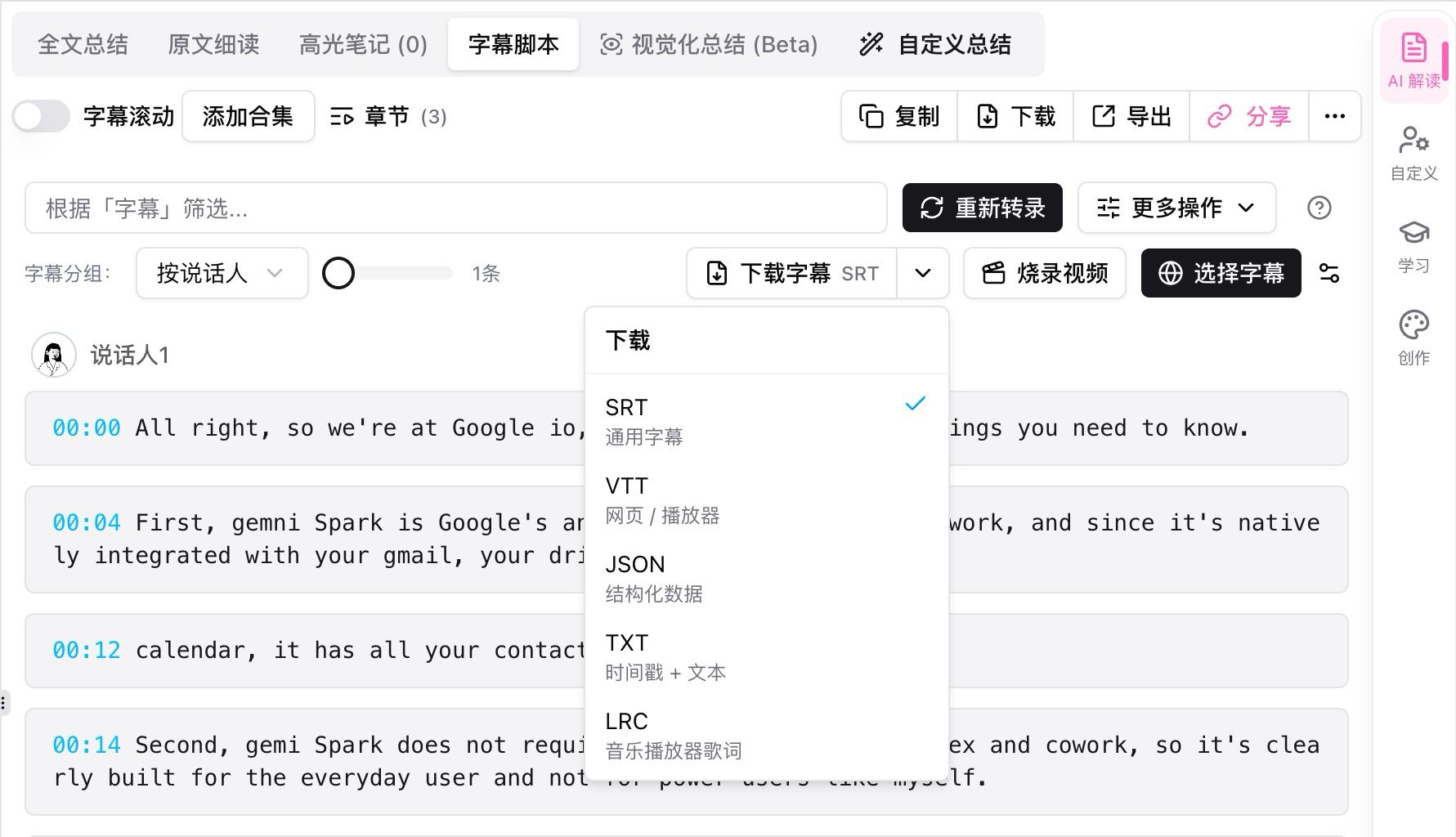
Export the transcript as TXT, SRT, or Markdown depending on where it’s headed next.
Rule of thumb: Most transcript tools stop at “giving you text.” BibiGPT goes further to “help you understand.” If you process 3+ foreign-language videos per week, the time savings add up fast.
Try BibiGPT YouTube Transcript Extraction Now
The Other 6 Tools, Reviewed
2. Downsub
Best for: quick, no-signup caption downloads.
- Key features: Paste a link, download existing YouTube captions as SRT or TXT. No account needed.
- Price: Completely free.
- Honest limitation: It only extracts captions that already exist — no captions on the video, nothing to download; accuracy is whatever the original captions were.
3. SaveSubs
Best for: the same quick extraction job as Downsub, as a backup option.
- Key features: Extracts creator-uploaded or auto-generated captions to SRT/TXT.
- Price: Completely free.
- Honest limitation: Same ceiling as Downsub — it cannot transcribe, only extract, so caption-less videos are out of reach.
4. YouTubeTranscript.com
Best for: grabbing plain text to paste somewhere fast.
- Key features: Shows the transcript as copyable plain text in the browser.
- Price: Completely free.
- Honest limitation: TXT only — no SRT/VTT, no timestamps to work with in an editor, and quality still depends entirely on the original captions.
5. Tactiq
Best for: live captions in Google Meet and Zoom meetings.
- Key features: Independent speech recognition across 60+ languages; exports TXT/DOCX; basic AI summary.
- Price: Free tier, paid upgrade beyond it.
- Free tier: 10 uses per month.
- Honest limitation: YouTube transcription is a side feature — the free quota runs out fast if videos are your main use case.
6. Notta
Best for: meeting and mobile audio recording transcription.
- Key features: Own recognition engine, 40+ languages, TXT/SRT/DOCX export, basic AI summary, mobile recording.
- Price: Free tier, paid upgrade beyond it.
- Free tier: 120 minutes per month.
- Honest limitation: 120 minutes disappears after a couple of long videos, and its YouTube workflow is shallower than BibiGPT’s.
7. Happy Scribe
Best for: professional subtitle files for video production.
- Key features: 60+ languages, SRT/VTT/TXT export, subtitle editor with precise timeline adjustment.
- Price: Paid after the trial.
- Free tier: Trial only.
- Honest limitation: No AI summary, and there’s no meaningful ongoing free tier — it’s built for paying production teams.
Which Tool for Which Scenario: A Decision Matrix
No tool is universally best — it’s about matching your use case. Here are recommendations by scenario:
Scenario 1: Occasionally downloading subtitles for one or two videos Go with Downsub or SaveSubs. Completely free — just open the website, paste the link, and download. No signup required. The limitation is that they can only extract existing YouTube captions and can’t handle videos without subtitles.
Scenario 2: Regularly organizing notes from foreign-language videos Go with BibiGPT. Auto-translation + AI summaries drastically cut down organization time. Especially useful for academic research, technical learning, and cross-language content consumption.
Scenario 3: Real-time meeting transcription Go with Tactiq or Notta. Both support live captions for Google Meet, Zoom, and other conferencing tools. Notta also supports mobile audio recording transcription. However, their YouTube transcript features are secondary — not as deep as BibiGPT’s.
Scenario 4: Content creators who need video-to-article conversion Go with BibiGPT. The video-to-article feature outputs a ready-made article framework with images, saving you from writing from scratch. None of the other 6 tools have this capability.
Scenario 5: Professional-grade subtitle files (SRT/VTT) for video production Go with Happy Scribe. Its subtitle editor supports precise timeline adjustment, ideal for professional post-production. If you just need a quick text transcript, BibiGPT also supports SRT export.
How Can You Get a More Accurate YouTube Transcript?
Pick videos with creator-uploaded captions, prefer AI transcription for auto-caption-only videos, and clean the text with an AI summarizer afterward — those three habits fix most quality problems regardless of the tool. Here are all five practical tips:
-
Prioritize videos with creator-uploaded captions: Human-made captions are far more accurate than auto-generated ones. In the YouTube player, click the “Subtitles” icon — if it shows “English” rather than “English (auto-generated),” it’s a manual caption.
-
Check audio quality before processing: Heavy background noise, multiple speakers talking simultaneously, or strong accents will reduce transcription accuracy across all tools. Consider running the audio through a noise reduction tool first.
-
Process long videos in segments: For videos over 2 hours, consider extracting in segments. BibiGPT supports automatic chapter segmentation to help you organize by topic.
-
Use AI for proofreading: After getting the transcript, use BibiGPT’s AI chat feature to ask about unclear passages — far more efficient than proofreading word by word.
-
Build a personal glossary: If you frequently process videos in a specific domain (e.g., machine learning, finance), keep a list of common technical terms with correct spellings and do batch find-and-replace on your transcripts.
Rule of thumb: A transcript tool is just the starting point. The complete knowledge workflow is “extract → proofread → summarize → archive.” BibiGPT compresses all four steps into one.
Frequently Asked Questions (FAQ)
How accurate are YouTube auto-captions?
According to YouTube’s official documentation, auto-caption accuracy varies by language and audio quality. English content under ideal conditions can reach 85–90%, but languages like Chinese and Japanese, as well as specialized domain content, typically fall in the 60–75% range. This is precisely why dedicated transcript tools exist.
Is it legal to download YouTube subtitles with these tools?
Downloading YouTube subtitle text for personal study and research falls under fair use. However, directly publishing or commercially using subtitle content from others’ videos may raise copyright concerns. We recommend using downloaded transcripts for personal notes and study purposes only.
Is BibiGPT’s free tier enough for daily use?
BibiGPT provides free credits upon registration, sufficient for processing several videos on a daily basis. If you’re a heavy user, consider upgrading to a Plus or Pro subscription for more credits and premium features.
What about YouTube videos with no subtitles at all?
Extraction-only tools like Downsub and SaveSubs can’t handle videos without subtitles. You’ll need a tool with a built-in speech recognition engine — like BibiGPT, Notta, or Happy Scribe — that can transcribe directly from the audio.
Can I process multiple videos at once?
BibiGPT supports batch processing and playlist summaries, allowing you to import multiple video links at once. Most other free tools only support one-at-a-time processing.
What are the common subtitle file formats?
The most widely used are SRT (timestamped subtitle files that import directly into video editing software), VTT (web-based subtitle standard), and plain text TXT. BibiGPT also supports Markdown export, making it easy to paste directly into note-taking apps.
Do these tools support platforms beyond YouTube?
Most tools only support YouTube. BibiGPT is the only one supporting 30+ platforms, including Bilibili, Douyin, Xiaohongshu, podcasts, TED, Coursera, and more. If you watch content beyond YouTube, BibiGPT’s cross-platform capability saves you from juggling multiple tools.
Bottom line: If you only need to grab a YouTube transcript occasionally, free extractors like Downsub will do the job. But if you regularly need to extract knowledge from videos, organize notes, or create content, BibiGPT’s all-in-one “transcript + translation + AI summary + knowledge output” experience is the biggest time-saver available today.
Popular tools
More in this series
- YouTube Subtitle Extractor: Best Downloaders Compared (2026)
- Free YouTube Transcript Generator: Top 5 AI Tools Ranked (2026)
- How to Get a YouTube Transcript for Claude (and Any AI Agent)
- How to Download YouTube Subtitles in 2026: 5 Methods Compared + BibiGPT One-Click Extraction (No Install)
- YouTube Video Summarizer API Key: A 2026 Developer Guide